



In this article
Register for the Client Portal
To register for the Client Portal, you need to use the invitation email sent to you by Kurense or your organization. The registration link in the invitation email will guide you through setting up your account.
You cannot create a Client Portal account directly from the login page without an invitation.
Steps
- Open the invitation email sent to your registered email address.
- Select the registration link in the email.
- Confirm your user details, including your first name, last name, and title.
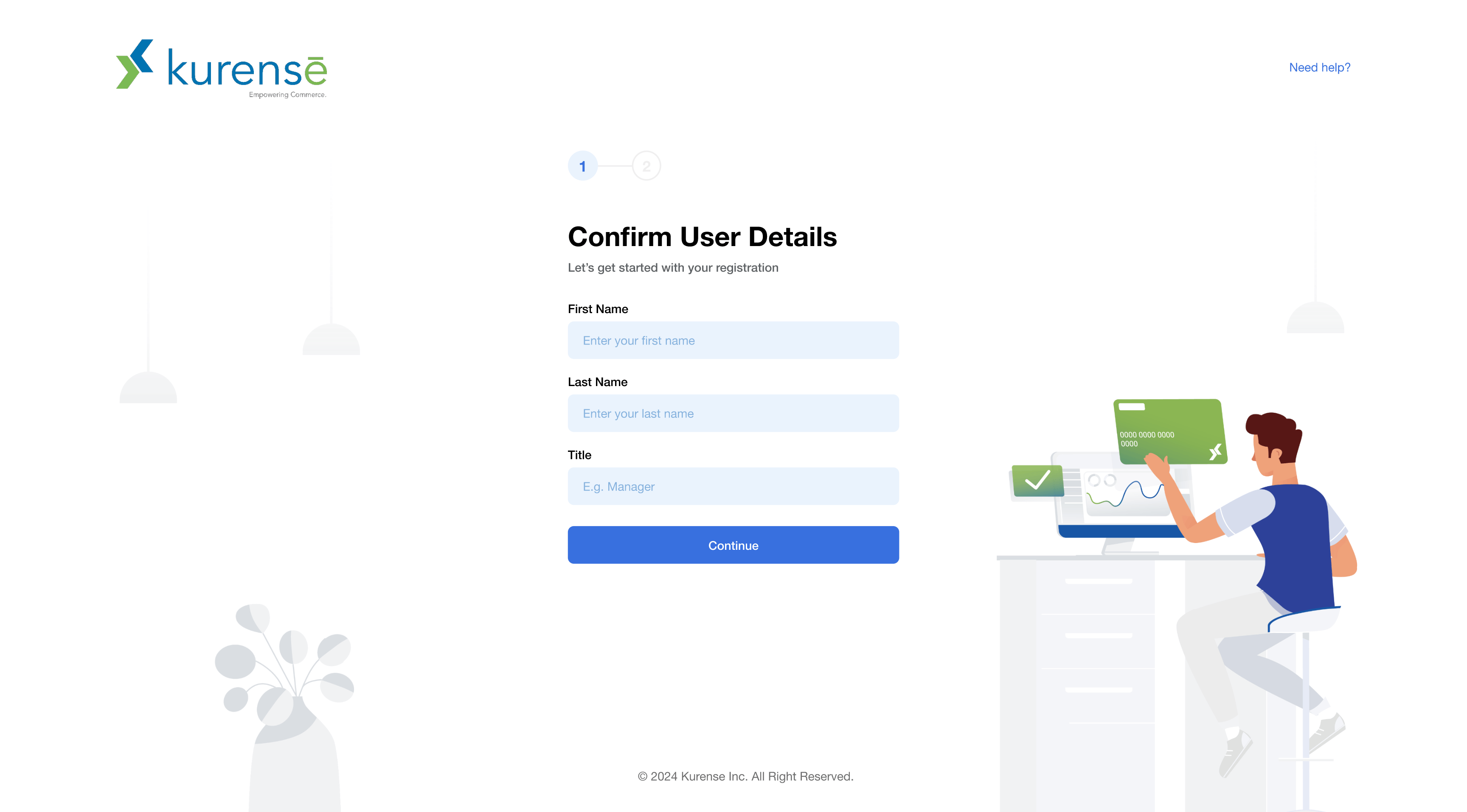
- Select Continue.
- Create your password.
- Confirm your password.
- Review and accept the Terms of Use and Online Privacy Policy.
- Select Create Account.
- After your account is created, return to the Client Portal login page and log in with your email and password.
Important Notes
- The invitation link may expire after a certain period of time.
- Use the email address where you received the invitation.
- If you did not receive an invitation email, contact your organization administrator or Kurense Support.
- If your invitation link is expired or does not work, request a new invitation.

Log In to the Client Portal
After you complete registration through your invitation email, you can log in to the Client Portal using your registered email address and password.
Steps
- Go to the Client Portal login page.
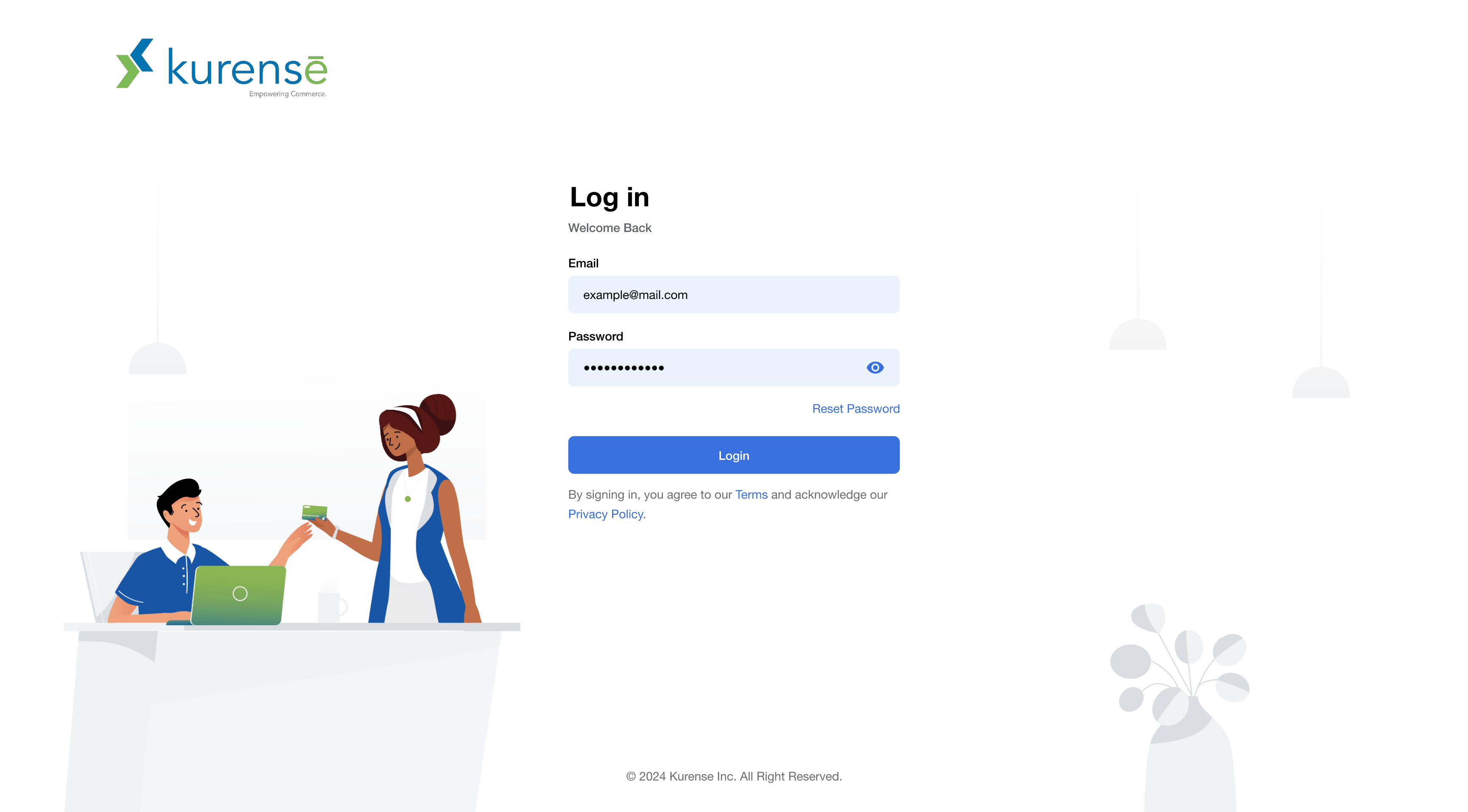
- Enter your email address.
- Enter your password.
- Select Login.
Reset Your Password
If you forgot your password, you can reset it from the Client Portal login page.
Steps
- Go to the Client Portal login page.
- Select Forgot Password.
- Enter the email address associated with your Client Portal account.
- Select Send Link to receive a password recovery link by email.
- Open the recovery email and follow the instructions.
- Create and confirm your new password.
- Return to the login page and log in with your new password.